Embroidery Design Preview: Essential Checks Before Sampling
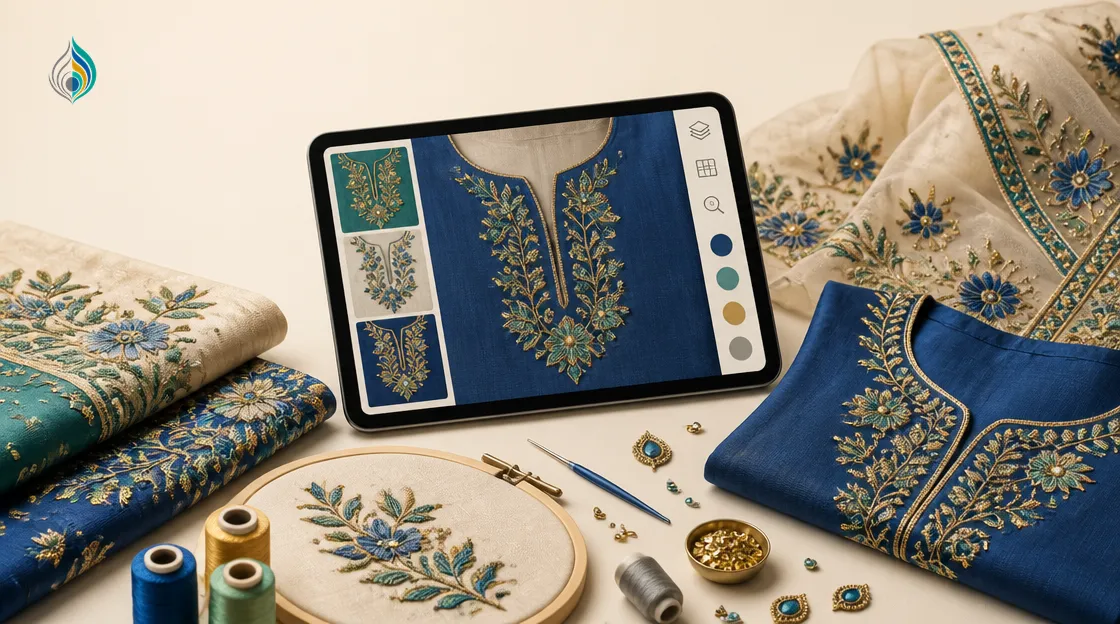
An embroidery design preview shows a design on the real fabric and garment before a single stitch is made. For saree, kurti, blouse and lehenga makers, it turns the first approval round into a screen check instead of a machine run. This guide covers what a good preview shows, what to check, and when you still need a physical sample.
Why Physical Sampling Gets Expensive
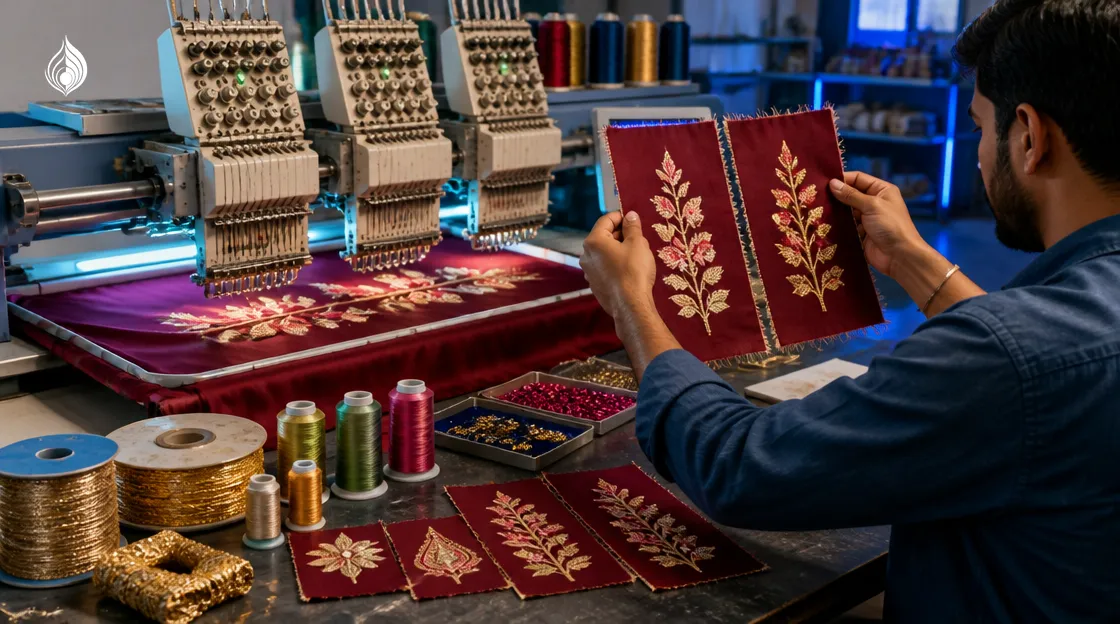
Every physical sample uses fabric, thread, zari, sequins and machine time. It also needs a digitizer to make the stitch file and an operator to run it. If the buyer rejects the colour or the motif size, the whole round starts again.
Many rejections are not about stitch quality. They come from choices that are visible at a glance: a thread shade that disappears on the fabric, a butta that is too large, or a border that crowds the neckline. A preview can catch these problems before any machine time is spent.
The wider fashion industry has tested this idea. In a 2022 pilot by the Australian Fashion Council FashTech Lab, brands used 30 digital samples in place of physical ones. They reported a 50% cut in sampling costs and sampling time falling from 12 weeks to 4. That pilot covered digital garment samples, not embroidery alone, but the logic is the same: decide on screen, then sample what is already agreed.
What a Realistic Embroidery Design Preview Shows
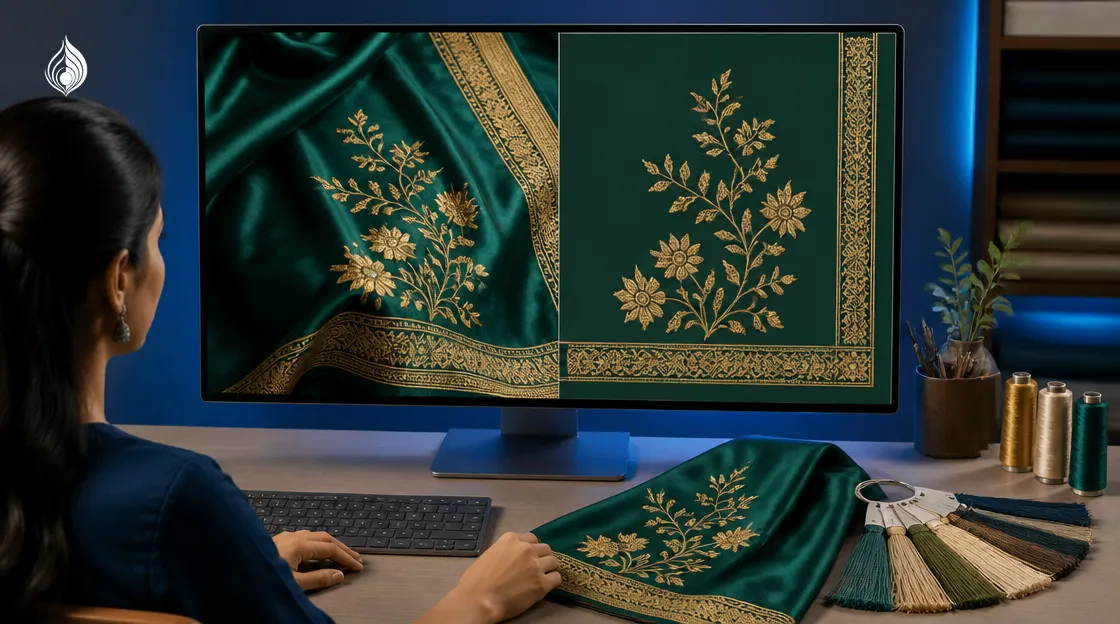
A flat motif on a white background is not a real preview. A buyer cannot judge maroon thread on that canvas when the final fabric is deep green silk. A useful preview places the design on the actual fabric colour and texture, in the right part of the garment.
Good previews usually come in two views:
- Design only: a flat reference that the workshop and the digitizer work from.
- On the garment: the design placed on the pallu, yoke, kali or border, which is what a dealer looks at when deciding.
The TextileStudio AI design studio works this way. You pick the garment and the exact part, upload a fabric photo or choose a preset, pick the embroidery style and lock a thread palette. It returns both views, with up to five variations per run.
How to Check an Embroidery Design Preview
A preview is only as useful as the review behind it. Go through these points before anything goes to the digitizer.
Thread colour against the fabric
Check contrast first. Tone-on-tone work can look rich on screen and flat in daylight. Colours also shift under different light, so compare the screen with the physical fabric swatch and your thread shade card.
Motif scale and placement
Judge the motif size against the whole garment, not against the screen. A butta that looks delicate when zoomed in can look sparse on a full saree. Check that the pallu, border and body motifs belong to the same family.
Density and fill
Heavy fill on light georgette or chiffon can pucker the fabric. If the preview shows dense, solid areas on a thin fabric, flag it for the digitizer now rather than after the first sample.
Zari, sequin and bead effects
Metallic zari, sequins, stones and beads catch light differently from plain thread. Check that the effect sits where you want highlights, such as the border or the yoke. Spread too widely, it makes the design look busy.
Neckline, border and panel fit
Check that the design clears the neckline, follows the curve of a lehenga kali and lines up at panel joins. For borders, make sure the repeat ends cleanly at the corners. The pattern repeat studio can lay a motif out as a strip of copies, so you can test a border before it is stitched.
A Practical Preview Workflow
A repeatable process keeps every preview comparable from one order to the next. These six steps work for most garments.
- Write a clear brief. Name the garment, the part (pallu, yoke, daman) and the occasion or price range.
- Photograph the real fabric. Shoot it flat, without folds, in even daylight, so the shade and texture stay true.
- Lock the thread palette. Limit the design to the shades you actually stock, so the preview cannot show colours you cannot buy.
- Generate a few variations. Three to five options give the buyer a real choice without overload.
- Review with the checklist above. Fix only the parts that need it, and keep each version.
- Send the approved design for digitizing. The preview is an image, so a digitizer still creates the machine stitch file, such as DST or EMB.
Sharing Previews With Buyers for Approval
Send the on-garment view first, because that is what the buyer pictures. Add the flat design view for your workshop. Label each variation with a short code so feedback stays clear, for example "V2, darker border".
Ask for written approval on one variation before you sample. A short message or email that records the agreed colour, size and placement is enough. Ready examples, such as this embroidery designs gallery, can also help a buyer explain what they want before you start.
Where a Physical Sample Is Still Needed
A preview narrows the decision. It does not replace the final check of how the work feels and behaves on cloth.
| Decision | Preview | Physical sample |
|---|---|---|
| Thread colour and contrast | Yes, for first approval | Final check under real light |
| Motif size and placement | Yes | Confirm on the cut garment |
| Hand-feel and weight | No | Yes |
| Stitch count and machine time | No | Yes, from the stitch file |
| Puckering and fabric behaviour | Partly | Yes |
The aim is one confirming sample after the preview is approved. That sample checks production, instead of restarting the design discussion.
Conclusion
An embroidery design preview moves colour, size and placement decisions to the screen, where a change costs minutes instead of a sampling round. Review each preview with a checklist, get written approval, then make one physical sample to confirm hand-feel and production. To see how the preview tools fit together, read the TextileStudio features overview.
Preview your embroidery on real fabric before you make a sample.
Try it freeFrequently asked questions
What is an embroidery design preview?
It is an image that shows an embroidery design on the real fabric and garment before stitching, so colour, size and placement can be approved on screen.
Does a preview replace a physical sample?
No. A preview settles colour, size and placement. A physical sample is still needed to confirm hand-feel, fabric behaviour and stitch count.
What should I check in an embroidery preview?
Check thread contrast against the fabric, motif scale on the full garment, fill density on thin fabrics, zari or sequin placement, and fit at the neckline, borders and panel joins.
Can I use my own fabric in the preview?
Yes. Photograph the fabric flat in even daylight and upload it, so the preview shows its true shade and texture. Preset materials are also available.
Does the preview give me a machine stitch file?
No. The preview is an image. A digitizer still creates the machine stitch file, such as DST or EMB, from the approved design.
How do I get buyer approval on a preview?
Send the on-garment view, label each variation with a short code, and ask for written approval on one variation before you make the sample.