Abaya / Jalabiya Catalog
Abaya catalog photos
from one front image.
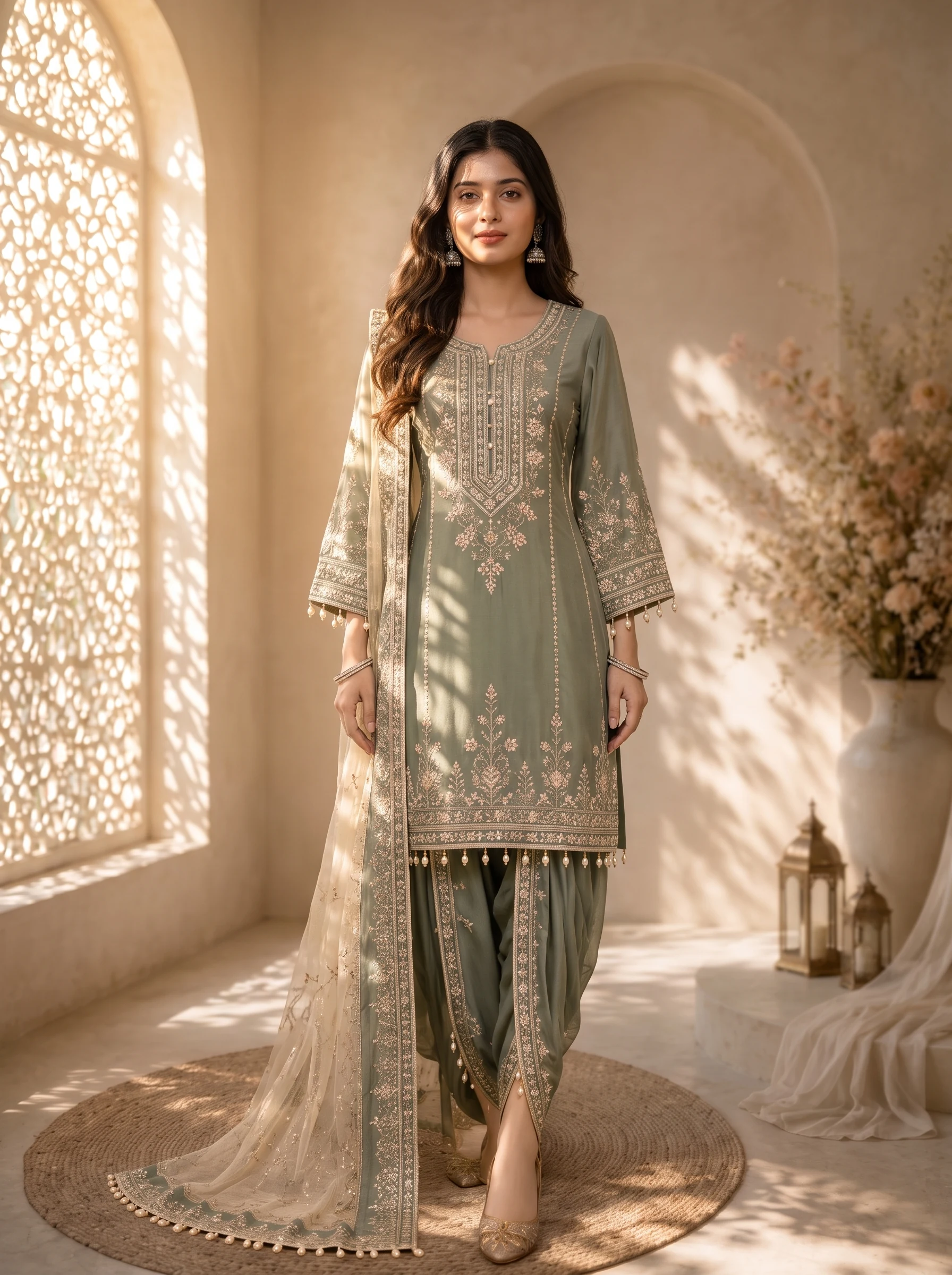
Upload the front of the abaya or jalabiya, add the back and a hijab style reference if you have them, and the Catalog Studio returns up to five photos of a model wearing it.
- Pick any of 5 camera angles
- One camera angle per photo
- 5 credits per photo
A worked example
What you upload, and what comes back.
Your input
Your output
5 PhotosHow it works
How Abaya / Jalabiya catalog photos are made in three steps.
Step 1
Upload the outfit
Each outfit type asks for its own photos — the required ones first, then any optional references.
Step 2
Choose the studio settings
Model category, aspect ratio, the camera angles you want, and an optional style description.
Step 3
Open your Catalog Collection
Photos appear there when they are ready, and you get a notification if notifications are on.
Studio Settings
- Model CategoryAuto matches the model to the outfit, or pick Female, Male or Kids.
- Aspect Ratio3:4 portrait, 4:3 landscape or 9:16 vertical.
- Camera AnglesPick any of the five — front, left, right, side, back. Each angle is one photo.
- Style descriptionUp to 300 characters on lighting and mood. It is not used for the outfit.
More catalogs
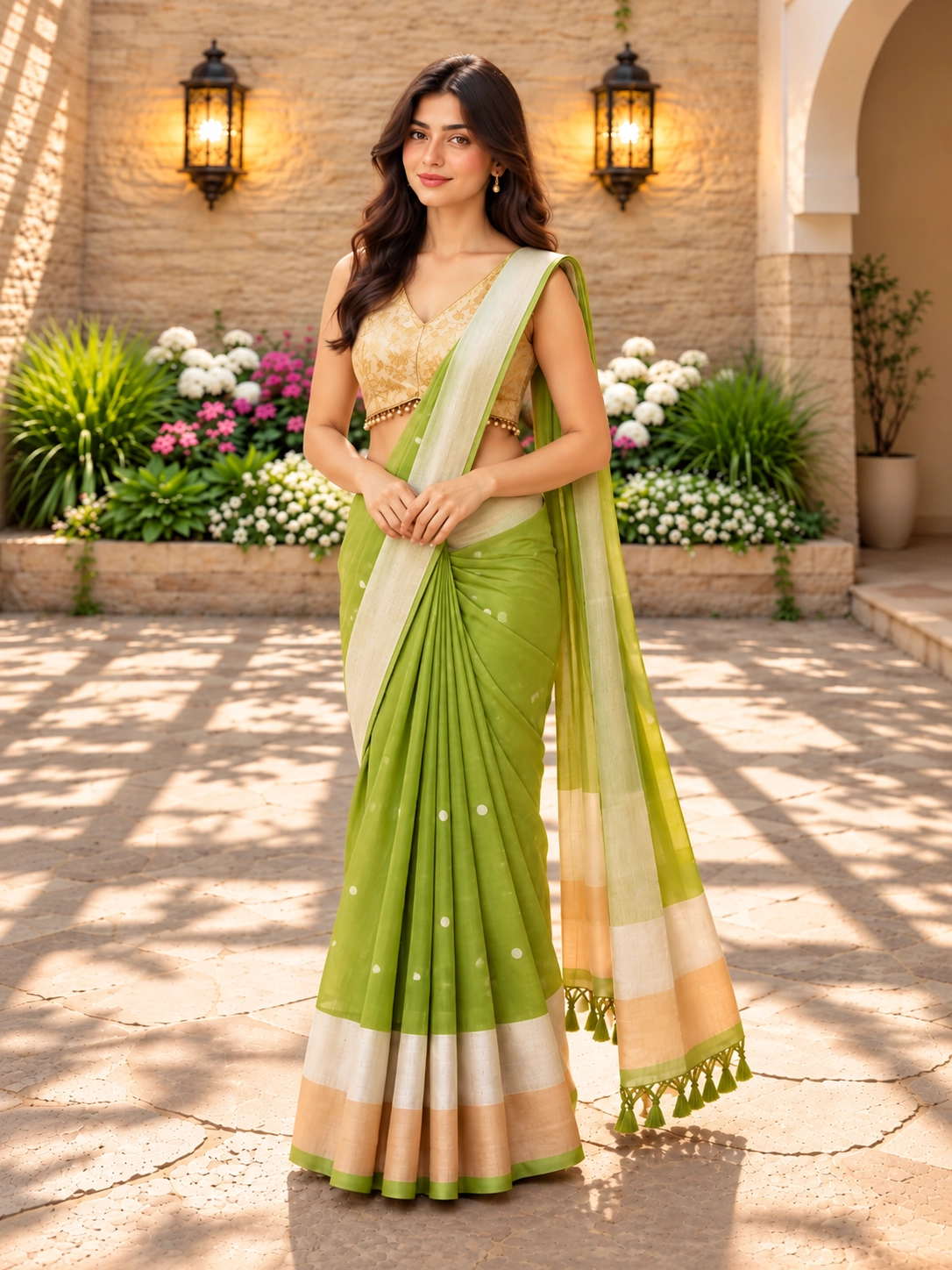
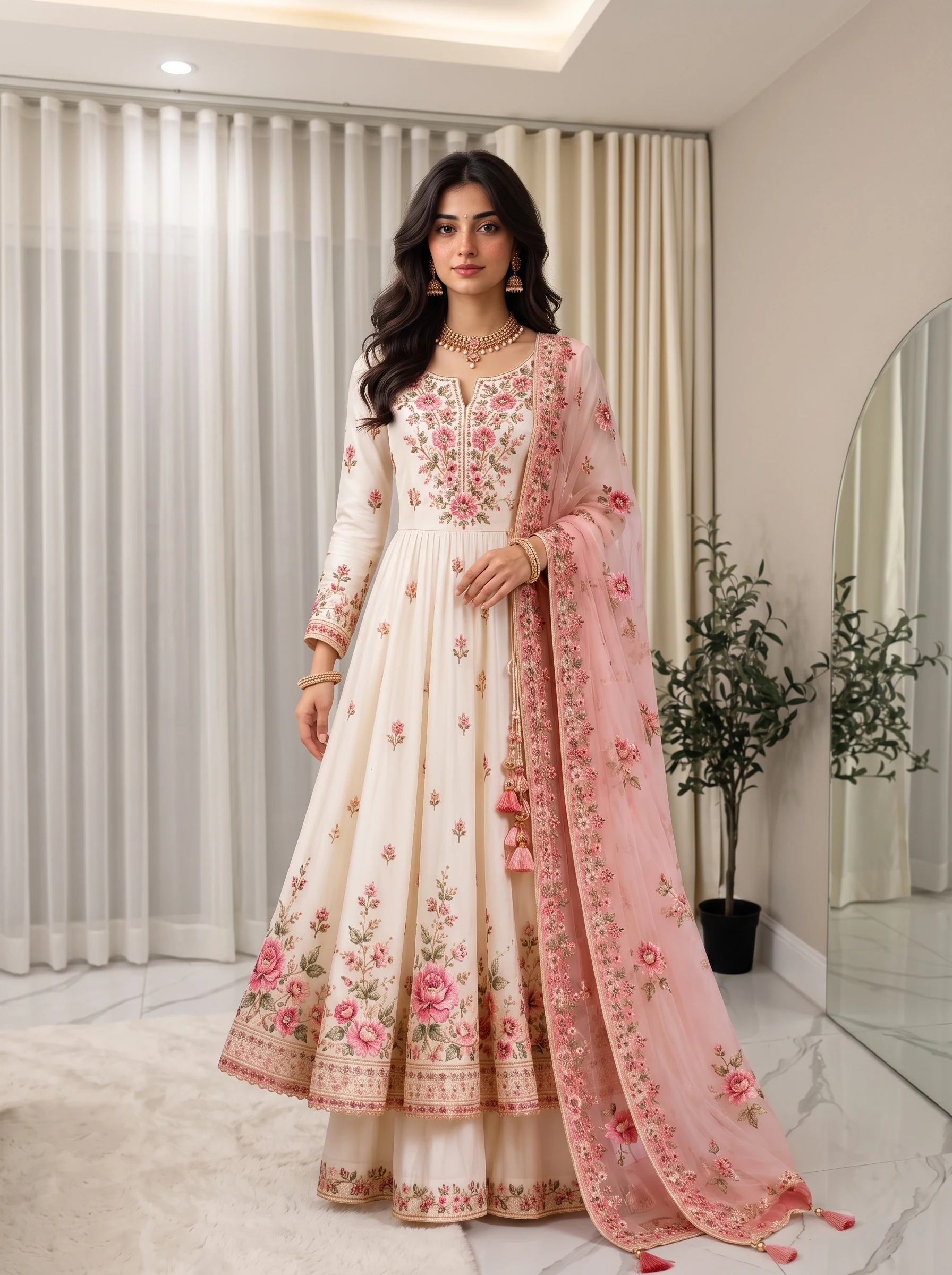
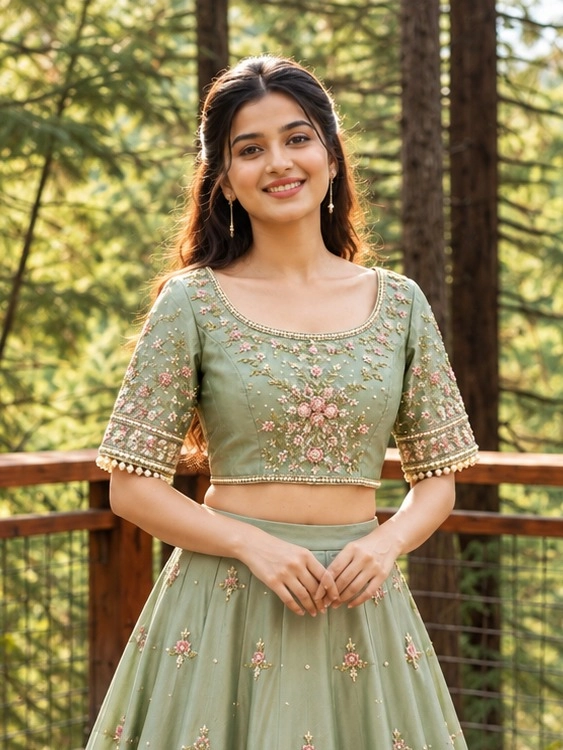
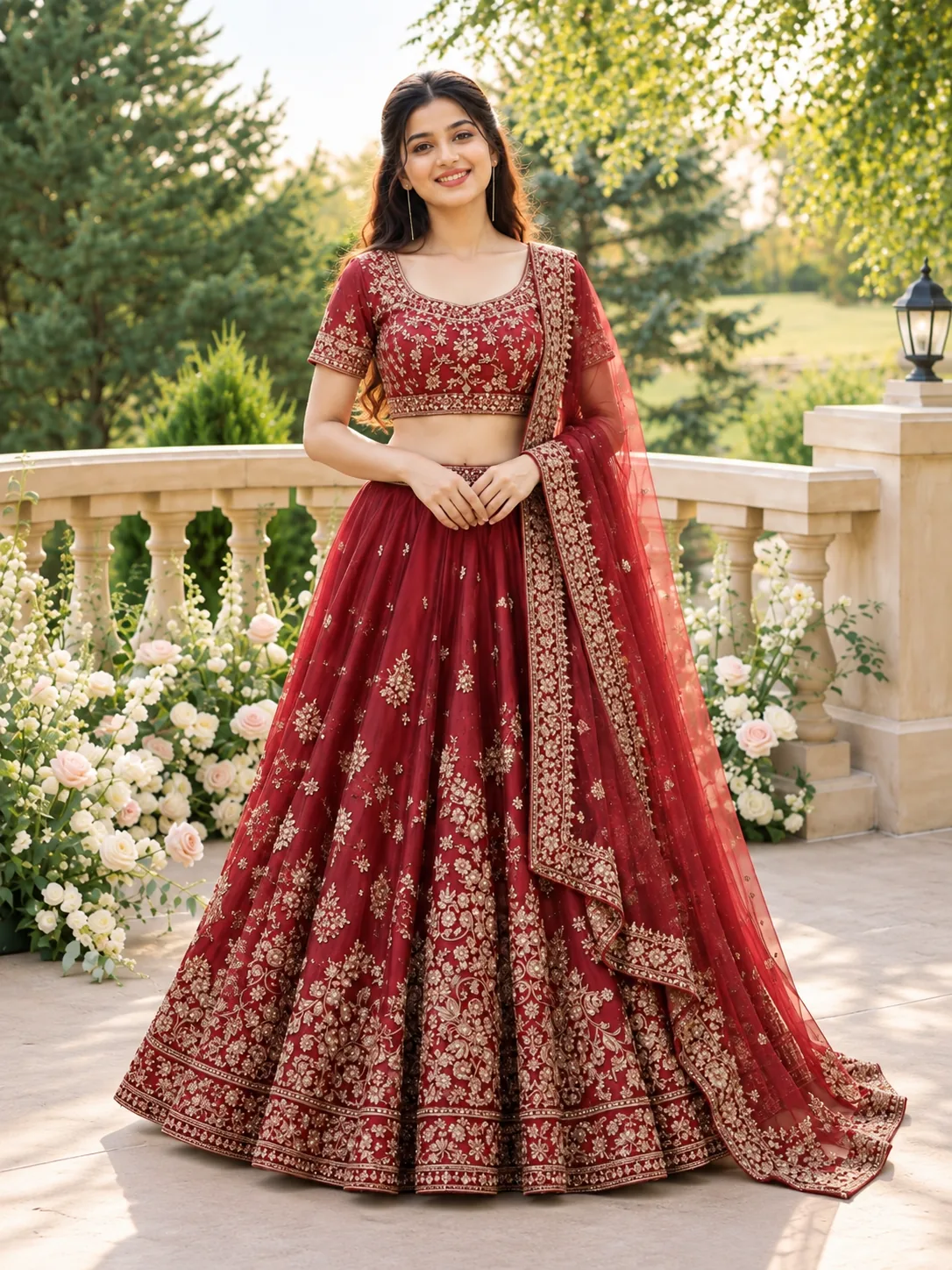
Other catalogs, each with its own upload form.
Before you start
Abaya / Jalabiya catalog questions answered.
Yes. Add an optional Hijab Style/Color Reference photo alongside the Abaya Front Image. An Abaya Back Image is optional too.
Yes. Abaya and jalabiya share one outfit type with the same uploads: the front image is required, the back image and hijab reference are optional.
Pick any of five angles in each run — front, left, right, side and back (left and right are three-quarter turns). Each angle you pick is one photo; front is selected by default.
Each photo costs 5 credits, taken when you start: 5 credits for one photo, 25 for five. Photos that fail to generate are refunded automatically.
Generation runs in the background; your photos appear in the Catalog Collection when ready. If notifications are on, you get one when the set is done.
Each angle is generated on its own, so the face and styling can vary a little from photo to photo. To keep one person throughout, upload a Model Reference photo — the studio is asked to use that person.
Yes. Download each photo on its own, or use Download all to save every photo in the set as separate files.