Garment to Design Studio
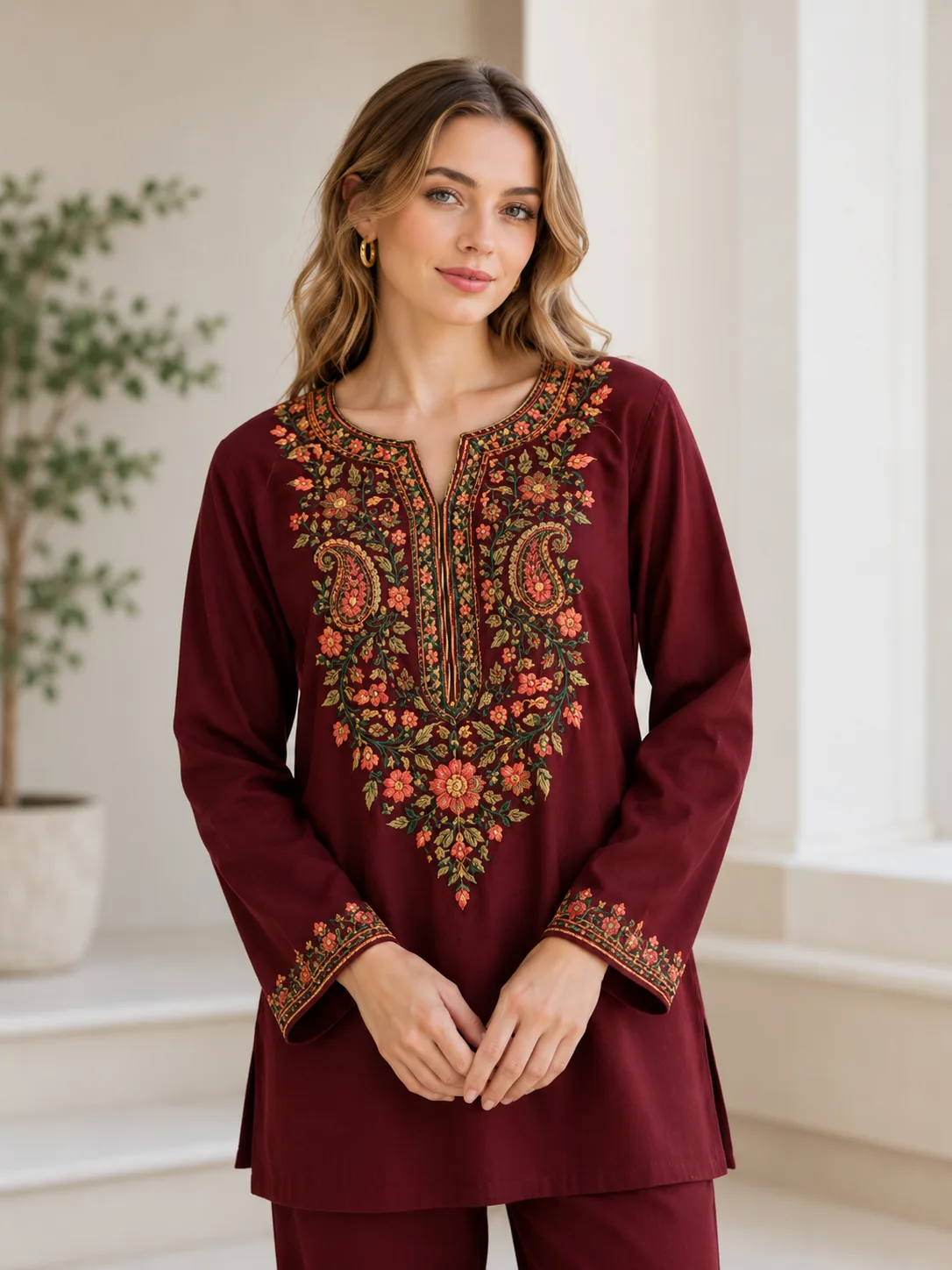
A garment photo
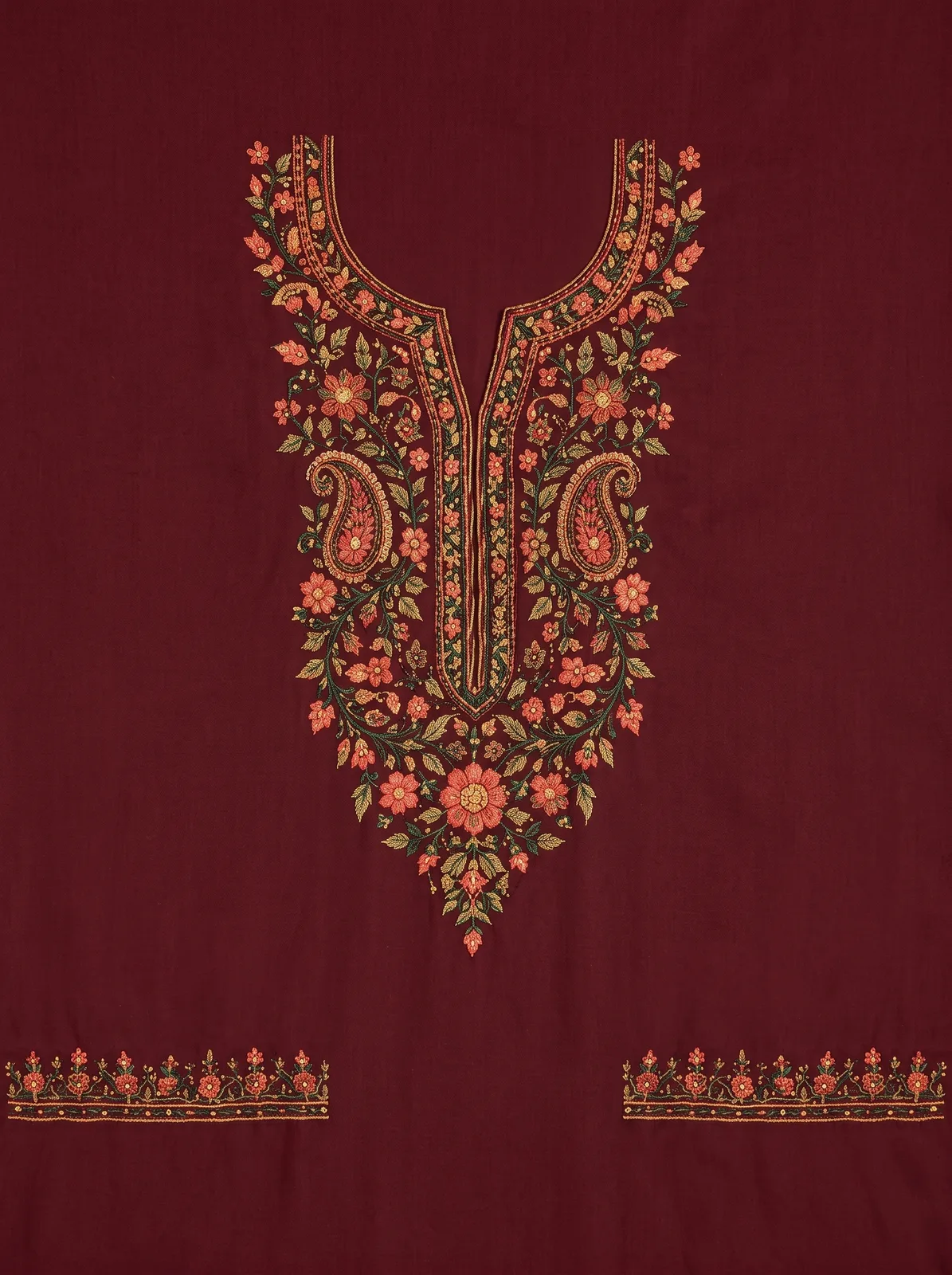
on one piece of its own fabric.
Garment to Design Studio takes a photo of a garment and lays its complete design out on one continuous, flat piece of fabric seen from above, with each sleeve's full design at the bottom.
What you get
You get an image preview of the embroidery, not a machine stitch file (DST, EMB). A digitizer makes the stitch file from it.
- You give
- One garment photo (JPG, PNG, WebP or HEIC, up to 25 MB).
- You get
- One flat fabric layout of the design on the garment.
- Size
- Made at the 2K quality setting, in the standard shape closest to your photo.
- Credits
- 5 credits per run.
Before and after
Garment photo in, same design out.
The result is shown first. Hover or tap the thumbnails to see the photo it came from.
When to use it
Your garment's design from a garment photo.
Garment photos
A kurti, saree, dupatta or dress, worn, on a mannequin or on a hanger.
Market references
A design you photographed in a shop or at a fair and want to develop further.
Several zones
Neckline, butis, borders and the main pattern keep their positions; sleeve designs go at the bottom.
Flat, top-down fabric
Folds, the garment shape and the mannequin are gone: one continuous, flat piece of fabric.
Same colours and work
The AI is asked to keep the colours, thread, beads, texture and weave exactly as in your photo.
Complete sleeve designs
Each sleeve's whole design is drawn once, flat on the same fabric at the bottom, with no sleeve shape.
How it works
Turn a garment into a design in three steps.
Step 1
Upload a garment photo
A photo of a garment or fabric with the design you want. You can also pick one of your recent uploads.
Step 2
Click Generate
There is nothing to set. The design is made in the background.
Step 3
Download the flat design
It is kept in your Garment to Design history, next to your photo, ready to compare and download.
Tips for a better result
- Show the whole design: the borders, the pallu and the main pattern should all be in the photo.
- Use a front view in good, even light, so every motif is clearly visible.
- Small motifs are redrawn, so compare the result with your photo before you use it.
- For a flat fabric scan that only needs cleaning, use Clean Scan Studio instead.
JPG, PNG, WebP or HEIC (max 25MB)
Before you start
Garment to Design questions people ask first.
It takes a photo of a garment and lays its complete design out on one continuous, flat piece of fabric seen from above, with no mannequin, person or garment shape.
They keep their original positions on one continuous fabric. Each sleeve's complete design is drawn once, flat at the bottom: in the bottom-left and bottom-right corners, beside the main design. Any other separate part goes above them. No sleeve shape is drawn.
Beadwork and embroidery are reproduced on the fabric, and lace appears as a flat lace pattern. Buttons, hooks, piping and the neck opening are left out: the result is unstitched fabric before tailoring, so nothing looks cut or stitched.
Yes, all optional. Pick one of 12 art styles, such as Zardozi Gold Work, Watercolour Wash or Gond Dot Art, and the same layout is drawn in that style. Fabric Cleanup makes the fabric smooth and even, with no wrinkles or stains. White Background puts the design on plain white with no fabric. Every combination is still 5 credits.
The AI is asked to reproduce the exact design, colours, texture and details, and not to redesign or invent anything. It redraws the whole image, so small motifs and colours can come out slightly different. Compare them with your photo in the side-by-side view.
One image at the AI model's 2K size, in the supported shape closest to your photo. It is never cropped afterwards.
Clean Scan Studio keeps the shape of your garment and cleans up the photo. Garment to Design Studio removes the garment shape and lays the design out on one flat piece of fabric.
Each photo costs 5 credits. If it fails, the credits are refunded automatically.
JPG, PNG, WebP or HEIC, up to 25MB. Each side must be at least 64 pixels, and the image can be at most 8 times as long as it is wide. HEIC photos from an iPhone are converted automatically.
Every result is saved in your Garment to Design history, next to your photo, ready to download again.