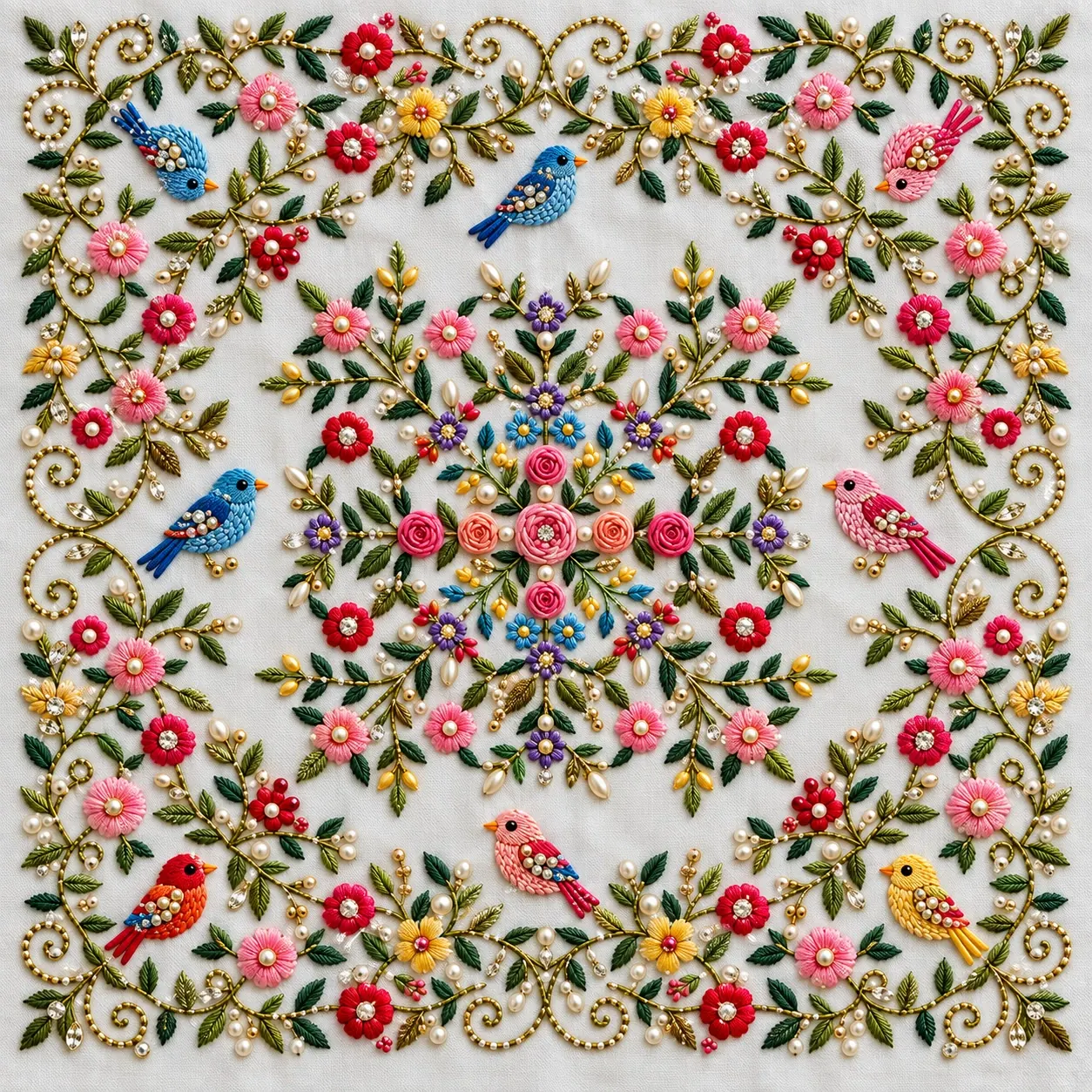
Design Extend Studio
A design cut off at the edge
grown onto a bigger canvas.
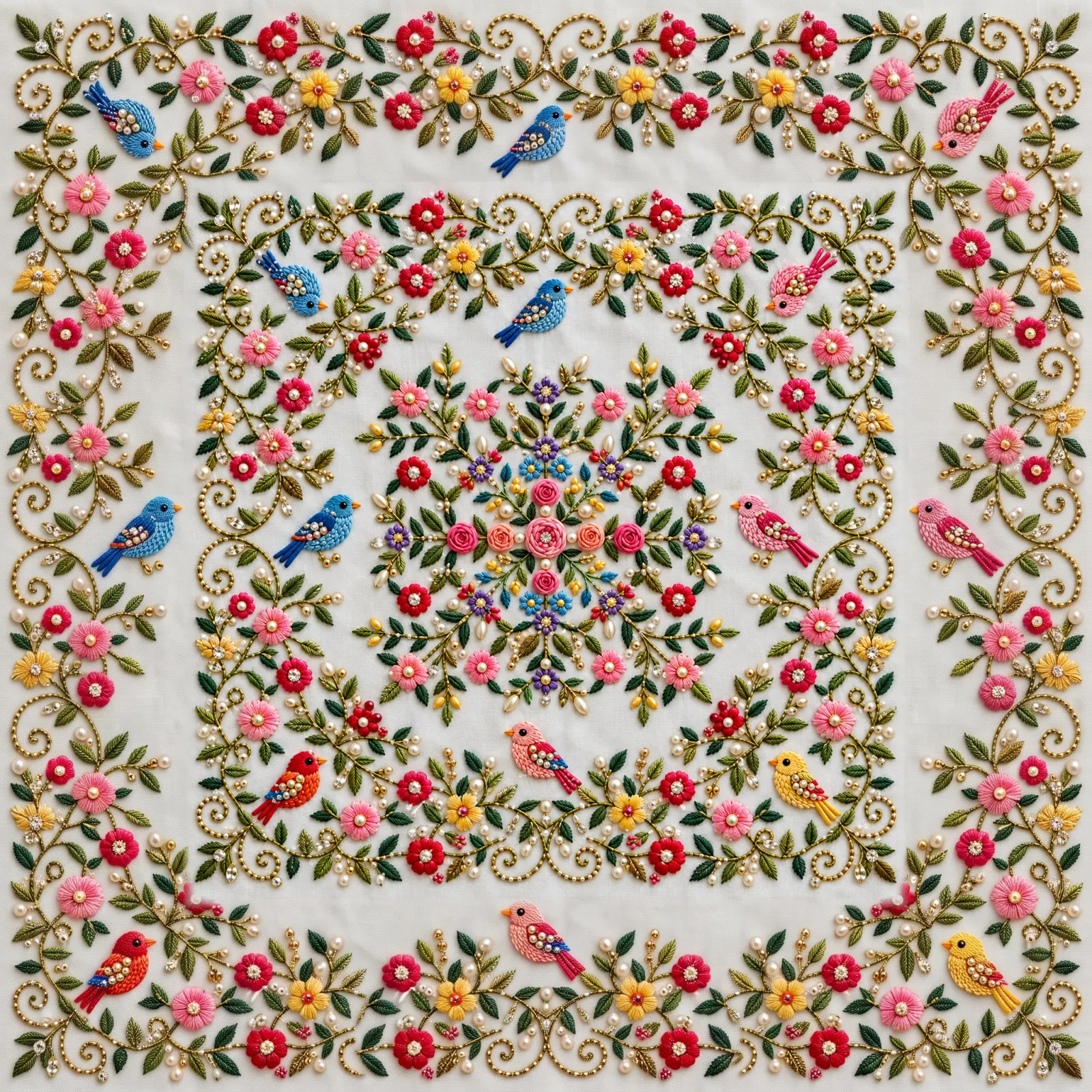
Design Extend Studio grows a print, weave or embroidery design beyond its edges. Choose how far each side extends, and the new area is generated to continue the motifs, colours and layout, with no frame or box added around your design.
What you get
You get an image preview of the embroidery, not a machine stitch file (DST, EMB). A digitizer makes the stitch file from it.
- You give
- One image (JPG, PNG, WebP or HEIC, up to 25 MB) and how far to extend each side, up to 50%.
- You get
- One PNG of the canvas you set in the preview. Your original stays at its size and place.
- Size
- Made at the 2K quality setting, the same width as your crop.
- Credits
- 5 credits per run. If the original comes back moved or redrawn, the result is rejected and the credits are refunded.
Before and after
Same design, more canvas.
The extended result is shown first. Hover or tap the thumbnails to see the original it came from.
When to use it
More design from the design you have.
Complete a cropped artwork
When a design is cut off at the edge of a photo or file, the missing area is generated to carry it on.
Make a small design bigger
Grow each side by up to 50% to build a larger composition from the design you already have.
Change the shape
Extend only the sides you need: wider for a border, taller for a panel.
Same motifs, same colours
The new area is asked to continue the motifs, colours, scale and spacing already in your design.
Your original, kept as it is
Your own design is kept at its exact size and place and blended into the new area. If the AI changes it, the extension fails and your credits are refunded.
No box around your design
The new area is asked to carry the design across its old edge, with no frame or border added around it.
How it works
Extend a design in three steps.
Step 1
Upload your design
A print, weave or embroidery design. You can also pick one of your recent uploads.
Step 2
Set how far each side grows
Choose 0 to 50% for the top, bottom, left and right. The preview shows the new canvas.
Step 3
Download the extended design
It is made in the background and kept in your Design Extend history, next to the original.
Tips for a better result
- Use the sharpest, largest version of your design you have.
- Crop away anything that is not the design, such as a table, hands or a frame.
- Keep at least one full motif near each edge you extend, so there is something to continue.
- Start with smaller extensions: the further a side grows, the more of it is new.
JPG, PNG, WebP or HEIC (max 25MB)
Before you start
Design extension questions people ask first.
It grows a textile design beyond its original edges. You choose how far each side extends, and the new area is generated to continue the motifs, colours and layout already in the design.
No. Your own original is kept at its exact size and place, and blended softly into the new area along the sides you extend. If the AI moves, resizes or redraws your design, no image is saved: the extension fails and your credits are refunded automatically.
Each side can grow by 0 to 50% of the design's own width or height, in steps of 5%. At least one side has to grow.
Exactly the canvas shown in the preview. The result is one PNG image, made at the AI model's 2K size, so a very large upload comes back smaller than it went in.
Each extension costs 5 credits. If it fails, the credits are refunded automatically.
JPG, PNG, WebP or HEIC, up to 25MB. HEIC photos from an iPhone are converted automatically.
Every result is saved in your Design Extend history, next to the original, ready to download again.