Background Remove Studio
Your design,
without the background.
Background Remove Studio finds the background in a design, motif or product photo and makes it transparent. Your design is not redrawn, and you download it as a transparent PNG.
What you get
You get an image preview of the embroidery, not a machine stitch file (DST, EMB). A digitizer makes the stitch file from it.
- You give
- One image (JPG, PNG, WebP or HEIC, up to 25 MB).
- You get
- One PNG with a transparent background.
- Size
- Never larger than your upload (longest side up to 4,096 pixels).
- Credits
- 5 credits per run.
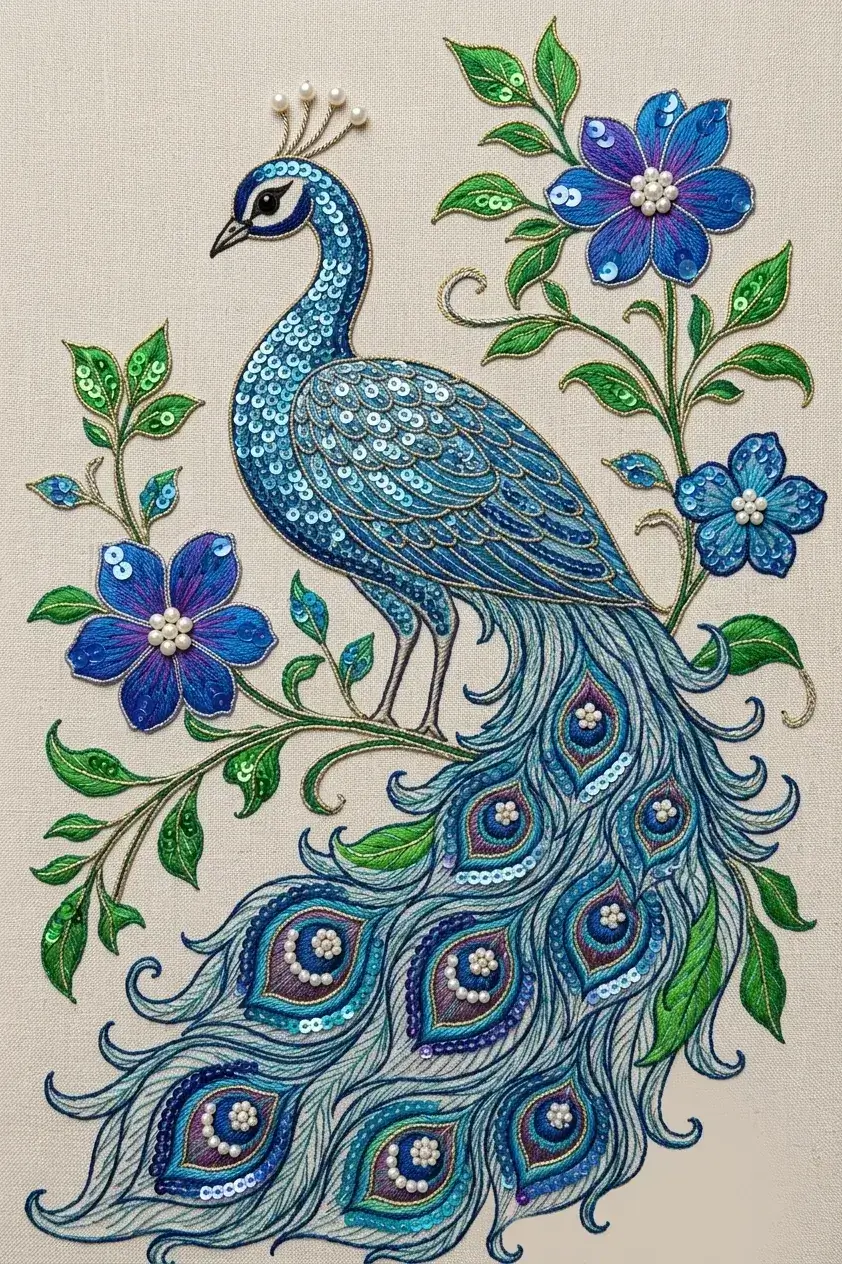
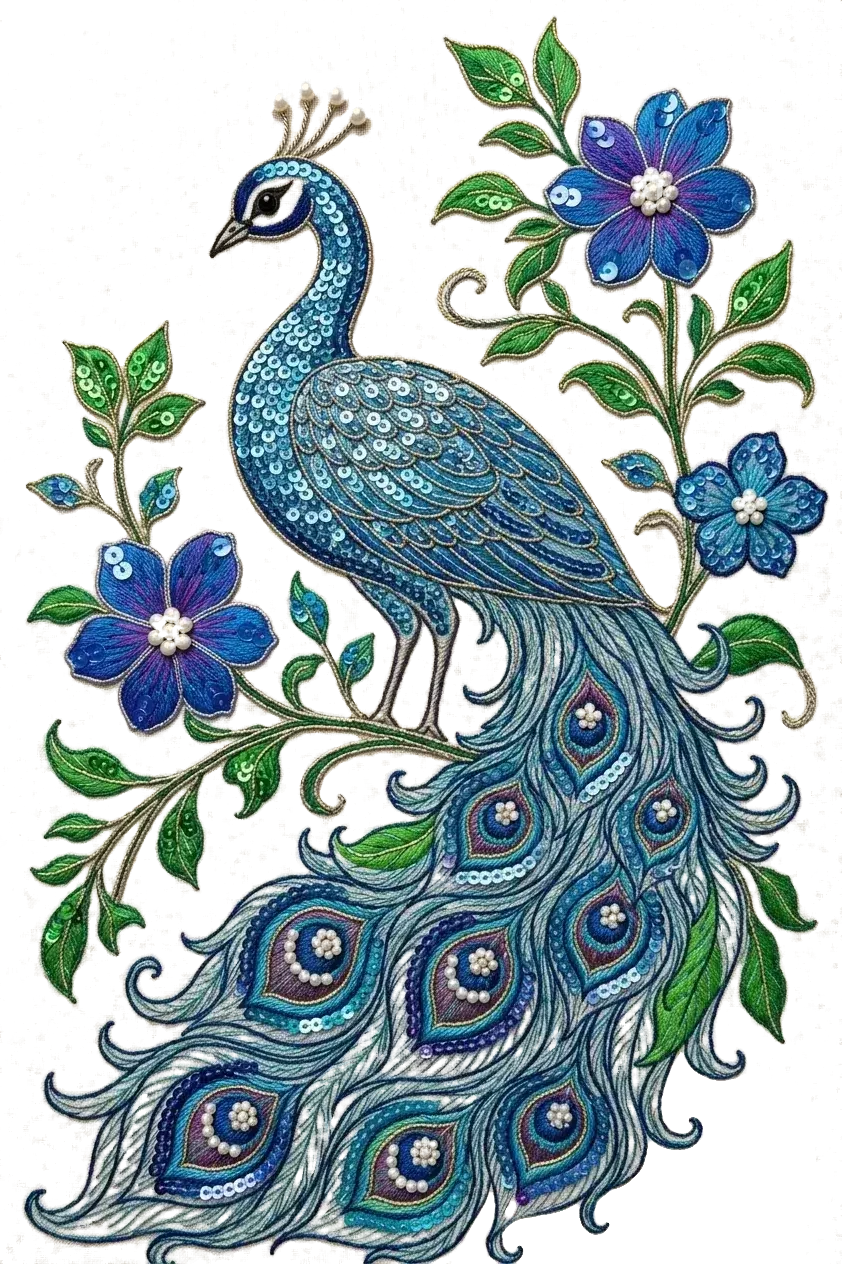
Before and after
Same design, no background.
The cut-out is shown first. Hover or tap the thumbnails to see the original it came from.
When to use it
A clean cut-out for every reuse.
Reuse a motif
Lift a motif off the fabric it was photographed on, to place it on a new ground or garment.
Product photos
Take a garment, dupatta or piece of work off its background for a catalogue or listing.
Designs from photos
Separate artwork from a table, wall or backdrop that came into the picture.
Soft edges
Edges keep a soft fade instead of a hard cut, so threads and fine edges are not chopped off.
Not redrawn
The design is not repainted: only the pixels marked as background become transparent.
Transparent PNG
You download a PNG that keeps its transparency, ready for any editor.
How it works
Remove a background in three steps.
Step 1
Upload your image
A design, motif or product photo. You can also pick one of your recent uploads.
Step 2
Click Remove background
There is nothing to set. The work runs in the background while you carry on.
Step 3
Download the transparent PNG
It is kept in your Background Remove history, next to the original, ready to compare and download.
Tips for a better result
- It works best when the design stands out clearly from what is behind it.
- The model decides what the foreground is. If it keeps or removes the wrong part, crop closer to what you want first.
- For a wrinkled or skewed fabric photo that you want flat, use Clean Scan Studio instead.
- Images longer than 4096 pixels on one side are scaled down to 4096 before processing.
JPG, PNG, WebP or HEIC (max 25MB)
Before you start
Background removal questions people ask first.
It finds the background in your image and makes it transparent, leaving the design, motif or product. You get a PNG that keeps the transparency.
No. The model only decides which pixels are background and makes those transparent; the rest is your own image. Edges get a soft fade rather than a hard cut.
The same image you uploaded, as a PNG. Images longer than 4096 pixels on one side are scaled down to 4096 first.
Not in the tool. The result is always transparent, so you can place it on any background in your own editor.
Clean Scan Studio flattens a fabric photo: it removes wrinkles, straightens it and paints a new, flat background. Background Remove Studio does not change your design; it only makes the background transparent.
Each image costs 5 credits. If it fails, the credits are refunded automatically.
JPG, PNG, WebP or HEIC, up to 25MB. Each side must be at least 64 pixels, and the image can be at most 8 times as long as it is wide. HEIC photos from an iPhone are converted automatically.
Every result is saved in your Background Remove history, next to the original, ready to download again.